

### Blog Post:
Skylight Calendar is quickly becoming a favorite smart device for families and individuals who want an organized, visual way to manage their schedules without relying entirely on phones or scattered sticky notes. If you’re tired of missing appointments, double-bookings, or spending time chasing down everyone’s schedule, this guide shows you what Skylight Calendar is, why it matters, and how you can make it work in your daily routine.
Key Takeaways
- Skylight Calendar displays your family’s or team’s schedule on a dedicated, shareable touchscreen—no more “Who has the car today?” confusion.
- Setup is fast: syncs most digital calendars, has color coding, and offers mobile access, but requires reliable WiFi and basic comfort with smart devices.
- Many users see benefits in reduced chaos but common pitfalls include tech hiccups, occasional sync glitches, and privacy tradeoffs worth knowing up front.
- What Is the Skylight Calendar? (And Why People Are Switching)
- How to Set Up and Use Your Skylight Calendar
- Real-World Problems & Mistakes: What to Expect
- Conclusion
- Frequently Asked Questions
What Is the Skylight Calendar? (And Why People Are Switching)
The Skylight Calendar is a sleek touchscreen display that sits in your kitchen, hallway, or office and shows your digital schedule in a way that’s always visible to everyone who needs it. Unlike traditional wall calendars or phone reminders, Skylight Calendar connects with your existing Google, Apple, Outlook, and Cozi calendars, updates automatically, and color codes each user or event for clarity.

People are switching to Skylight Calendar when they get fed up with missed practices, forgotten birthdays, or general household chaos. By centralizing the schedule, everyone in the family or team can add, check, and change events in real time. This level of transparency is especially useful for families with kids in multiple activities, roommates, or small office teams.
For anyone managing a major home project, a visual schedule can help coordinate deliveries, contractors, and appointments—especially when combined with tools from home improvement stores for renovation planning.
How to Set Up and Use Your Skylight Calendar
Getting your Skylight Calendar up and running is straightforward, but best results come from a disciplined setup and ongoing habits. Here’s how to make it work for you:
- Unbox and Connect: Plug in the Skylight Calendar and connect it to your home WiFi network using the on-screen instructions. Make sure you have a stable signal where the device will live.
- Create a Skylight Account: Register on the Skylight website or app. This gives you the dashboard to control and sync calendars.
- Link Your Digital Calendars: Follow prompts to securely connect Google Calendar, Apple Calendar, Outlook, or others. Grant necessary permissions for read/write access—this is required for two-way syncing.
- Customize Display Settings: Choose between weekly, monthly, or agenda views, set color codes for each person, and adjust font size or brightness for visibility in your space.
- Add Users & Permissions: Invite family or teammates, set up their profiles, and decide who can add, edit, or only view events. For kids, consider read-only access.
- Mobile App Integration: Download the Skylight app on your phone for remote updates or changes. This helps when you’re away and need to check or edit plans.
- Daily Habits: Designate one time each day (like after dinner) for a quick review. Encourage everyone to check/update as part of their routine.
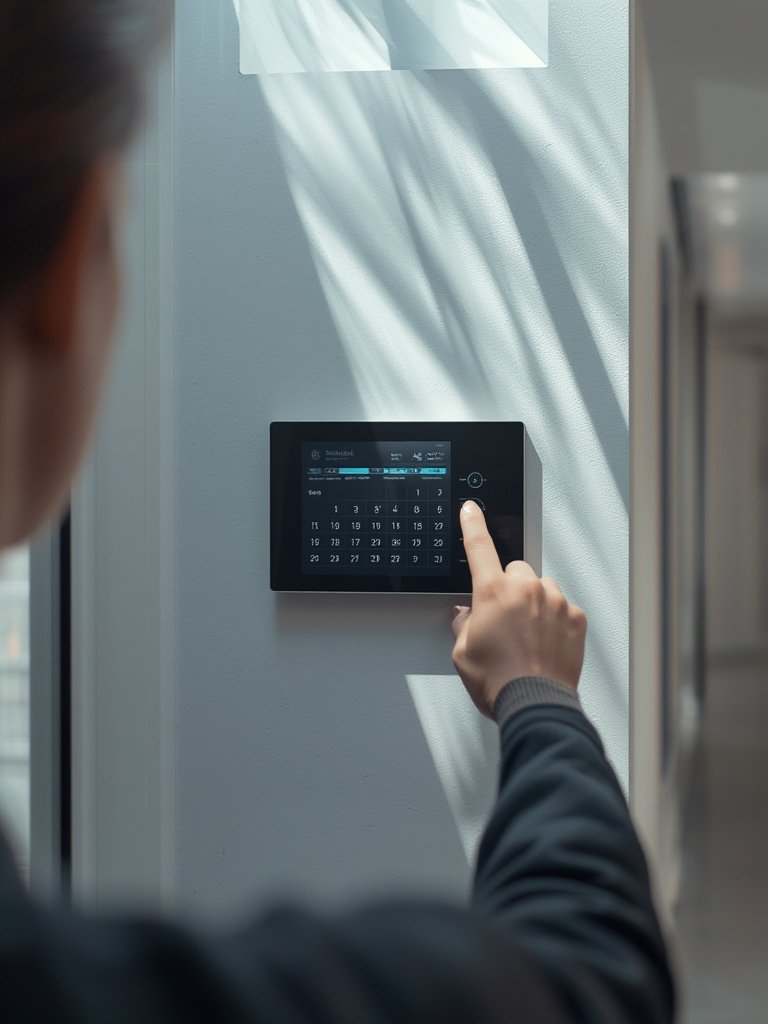
During setup, you might run into sync issues—usually resolved by reauthenticating calendar permissions. If your calendar is only updating one way (push, but not pull), double-check sharing settings and app version compatibility.
Some users pair their Skylight Calendar with other smart devices or routines—like syncing meal plans, chore charts, or even scheduling time for DIY or yard work. If you’re starting a yard project, pairing with the right tools (such as a portable electric chainsaw for pruning) and having your plans visible can increase follow-through and reduce stress.
Real-World Problems & Mistakes: What to Expect
No system is perfect. While the Skylight Calendar solves many communication headaches, users commonly report several issues and limitations:
| Potential Issue | Why It Happens | How to Avoid or Fix |
|---|---|---|
| Events Not Syncing | Incorrect calendar permissions, outdated app, or network hiccups | Re-link accounts, update firmware, verify WiFi |
| Screen Glare or Poor Visibility | Placing device facing a window or bright light | Adjust location or brightness, use anti-glare screen protector |
| Privacy Concerns | Sensitive data visible to all users; cloud sync dependence | Limit sensitive calendar integration; assign private events |
| Limited Offline Functionality | Device designed for cloud connectivity | Plan for WiFi outages, download mobile app for backup |
For some, the dependency on a stable internet connection is a deal-breaker. Without WiFi, the Skylight Calendar becomes essentially a static display until the connection is restored.
If you’re using smart calendars to synchronize activities like yard work or home maintenance, note that digital device downtime might interrupt planned projects. For major upgrades, aligning device sync with your chosen home improvement systems can help minimize disruption. For project planning, see our guide to home improvement project planning.
Lastly, keep security in mind. Like any cloud-connected device, regular software updates and strong passwords are essential to protect your information. Hackers target all smart home devices, not just traditional computers. Stay current with firmware releases and security news for the Skylight brand.

Conclusion
Switching to a visual, always-on smart display like the Skylight Calendar can help reduce stress, keep your household or team on task, and close the loop on forgotten commitments. Some technical quirks and privacy considerations mean it isn’t for everyone, but for busy families or organized project leaders, the payoff is real. If you’re looking to streamline communication and keep everyone in sync, the Skylight Calendar may be the most effective calendar upgrade you make this year. Ready to live with less chaos? Consider adding Skylight Calendar to your routine today.
Frequently Asked Questions
Does Skylight Calendar work with Google and Apple Calendars?
Yes. You can sync both Google and Apple Calendars, as well as Outlook and several others, for seamless cross-platform scheduling.
What happens if my WiFi goes down?
The device stores recent calendar data as a static display, but no new events or edits will show until WiFi goes down. For added access, use the mobile app.
Is my private information safe on the Skylight Calendar?
The device uses standard cloud encryption, but you should limit sharing of highly sensitive events and use strong account passwords. Always update firmware for security.
Can kids add events or change information?
Parents can set edit or view-only privileges for each user, so children can participate without risking accidental schedule changes.
Where should I place my Skylight Calendar for best results?
Mount it in a high-traffic area such as the kitchen or hallway—avoid direct sunlight and ensure WiFi reaches the device for best performance.
—